Resources
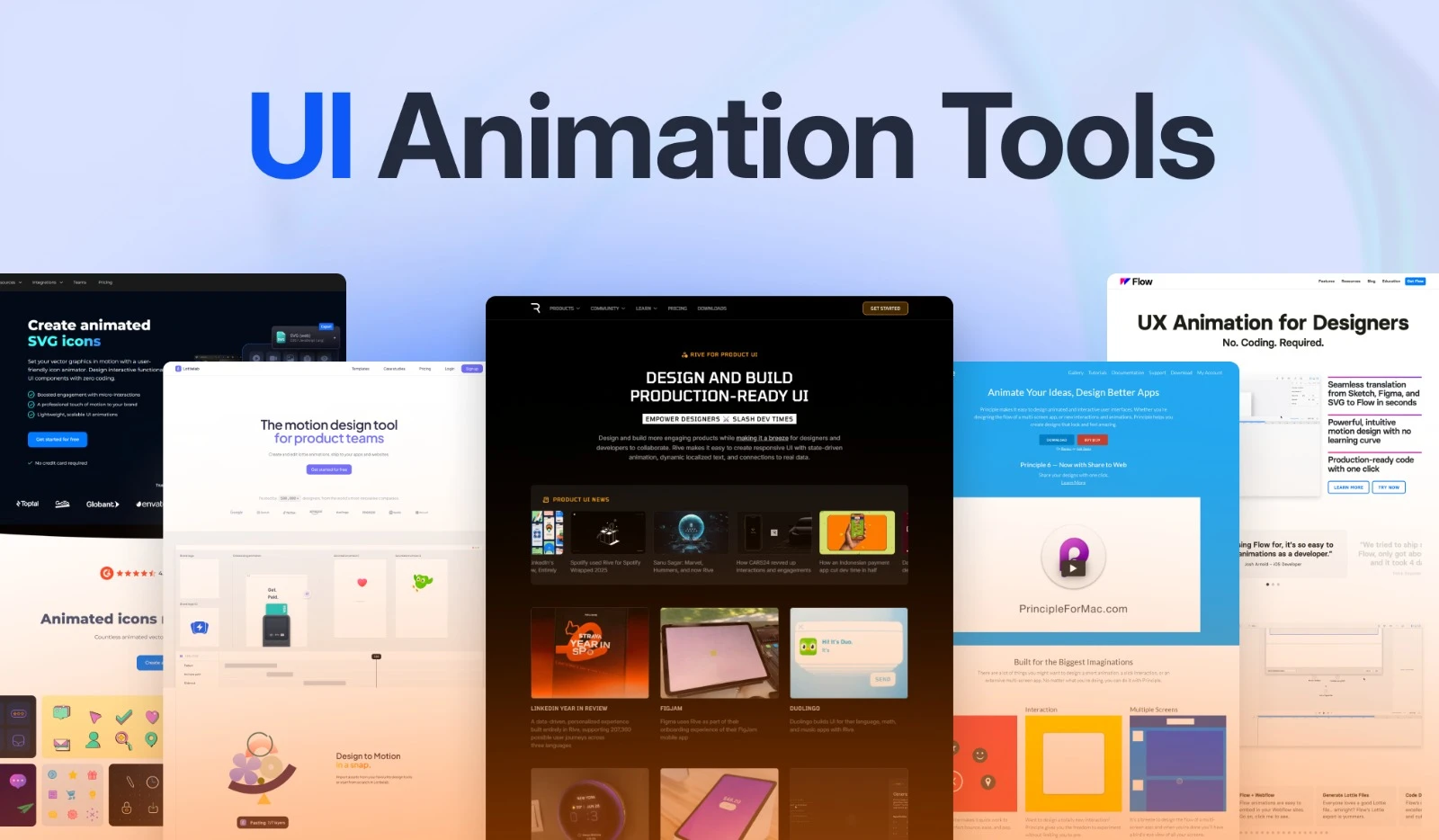
Explore the best UI animation tools, including Rive, Flow, Lottielab, and SVGator, with features, benefits, limitations, and use cases.
Author

Tarik Eamin
Publish Date :
Read Time :
12 Minutes


Resources
Explore the best UI animation tools, including Rive, Flow, Lottielab, and SVGator, with features, benefits, limitations, and use cases.
Author
Tarik Eamin
Publish Date :
Read Time :
12 Minutes
Key Takeaways
Rive is best for interactive, state driven animations that respond to user actions and live product data.
Flow suits designers who want precise timeline control and code-oriented export for web or app implementation.
Lottielab is ideal for creating, editing, collaborating on, and delivering lightweight Lottie animations.
SVGator works best for animated SVG icons, logos, loaders, and web microinteractions.
Choose based on the final output you need: runtime component, generated code, Lottie asset, or animated SVG.
In the flooded market of UI animation tools, Rive, Flow, Lottielab and SVGator are the best tools for creating UI animations in 2026.
Not understanding which UI animation is best for you among the best four we mentioned? Then, worry not, as we have gone through in detail regarding Rive, Flow, Lottielab, and SVGators workflow, features, benefits and limitations.
Keep on reading to understand your needs, strengths, and limitations regarding UI animations tools.
Remember, the best UI animation tools are not the ones with a big feature list, rather the ones which produce the right deliverables for your workflow. Check on these factors before picking the right UI animation tool for yourself:
Decide which final output you want, such as an interactive prototype, animated SVG, Lottie file, generated code, or video, as each serves different purposes.
Check out the interaction complexity, as a timeline editor might be enough for a loader or a logo animation. But components with hover, loading, success, error and data driven states need more advanced interaction logic.
Look for the important compatibility in the UI animation tools, see if it imports Figma, Sketch, SVG, Lottie or other source files. And also see if they preserve layers, masks, gradients, text and component structure. If your design needs extensive cleanup afterward then an import option is not useful.
Check the collaboration and maintenance of the UI animation tools through shared files, comments, libraries, and updateable links, how easily your team can revise it.
Choose the UI animation tool according to the experience you need, not based on the features it has.
Remember, UI animation tools might look the same, but each of them produce very different deliverables. The right animation tool for you depends on what you are building, how interactive your creation needs to be and more.

Rive is a popular interactive design and animation tool for making graphics that respond to your users, application states and live data. Here, you can combine multiple animations and define how the asset moves, and not just export a fixed sequence. Rive is best for animated buttons, loaders, onboarding characters, progress indicators, product illustrations, game interfaces, and success or error states.
It gives you the runtimes and integrations for Web, React, Apple platforms, Android, Flutter, React Native, Unity, Unreal, Webflow, and Framer. Through the responsive layout system your animated components can adjust to different containers rather than behaving like fixed sized work.
You can switch one component between idle, hover, pressed, loading, success and error states through State Machines of Rive based on user action or product logic.
With the Data Binding option you can connect text, colors, images, numbers, transitions, and other animation properties.
You can use the open source runtimes across mobile apps, websites, frameworks, game engines, and embedded experiences.
You get bones, meshes, constraints and inverse kinematics control for character animation, expressive mascots, and articulated illustrations.
Rive requires more learning time than other platforms such as Lottie editor.
You should verify the exact target platform before moving to advanced editor features as it can differ between runtimes or renderers.
People say that Rive is strong in production but needs more technical coordination than its visual interface.
Pick Rive if you want your animation to respond to actual interface states, user input, or product data. Reusable interactive components and complex runtime behavior is helpful, and for a fixed loader, animated logo or illustration use Lottie or SVG for faster and easier workflow. In short, Rive is best for complex and heavy UI animations work among all the other platforms.

Made only for Mac users, Flow is built to connect visual motion design with frontend and native implementation. You can import from Figma, Sketch, and SVG then animate it and export in formats needed as your requirement.
It comes with code oriented handoff, generating for Swift, HTML, CSS, JavaScript, React, and animated SVG workflows, and also Lottie and media formats. You get an editable output that you can review and integrate into the target product. You can work with animated buttons, onboarding sequences, launch screens, logo motion, screen transitions, and interface components in Flow, with a defined beginning and ending state.
But, Flow is best if your motion follows a planned timeline, but less strong for deeply branching interactions or components behavior depending on live application data.
You don’t have to manually reconstruct every visual layer after importing from Figma, Sketch, or SVG.
The keyframe timeline and custom easing curves will give you detailed control over timing, speed, movement, opacity, scale and other supported properties.
Automatic artboard transitions will give you a faster starting point while you match layers existing across the beginning and ending interface states.
As a technical team you can custom export templates matching your platform, structure, and naming requirements.
The generated output is not a finished production code, so treat it like a first draft in Flow.
You need to review Flow’s creation’s responsiveness, accessibility, maintainability, performance, and compatibility strictly.
Flow doesn’t support full SVG specification and doesn’t keep animation information or advanced styling code from imported SVG files.
Windows users can not use Flow, only for Mac users.
Pick Flow if you want precise controls over visual animation, and for complex state logic, or Lottielab when your primary deliverable is a managed Lottie asset.
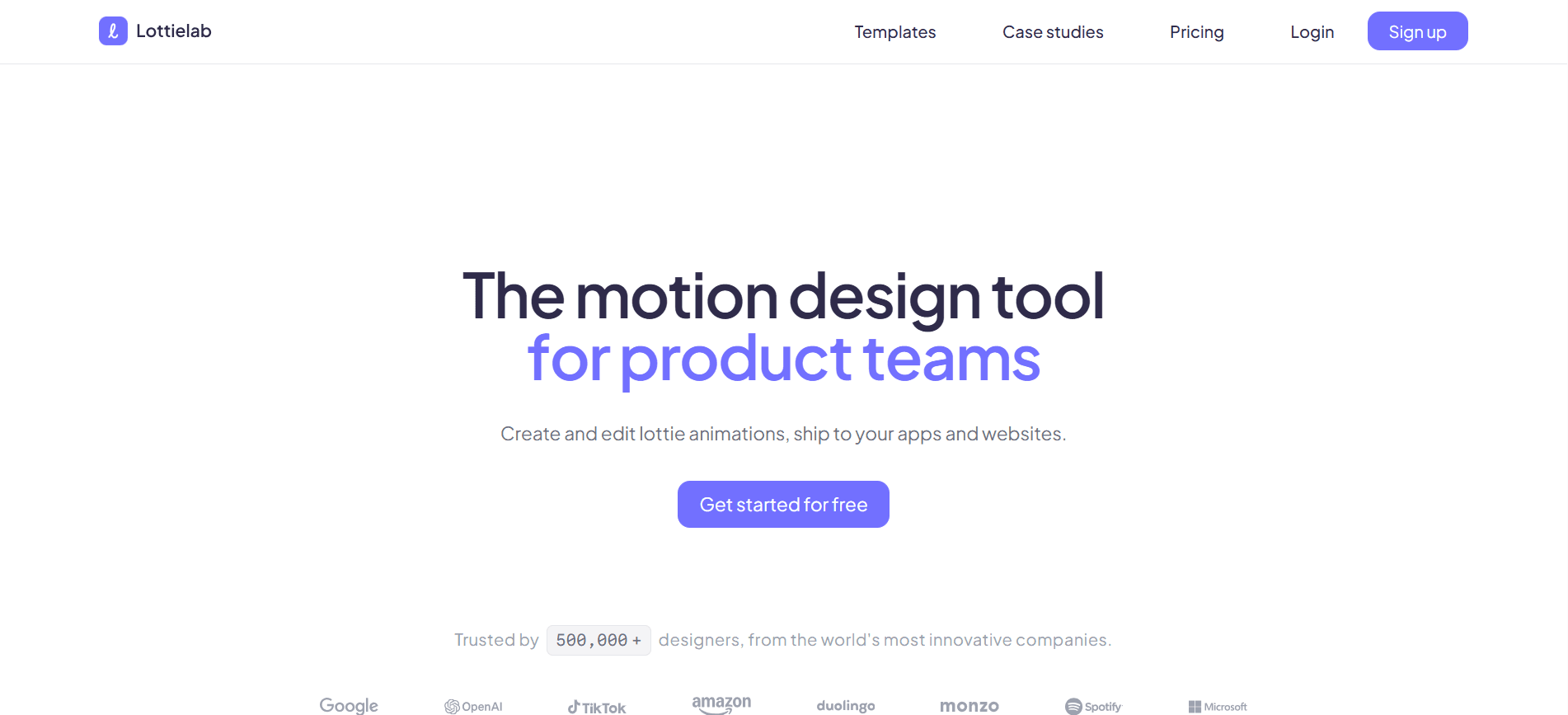
For Lottie workflow, Lottielab is the best browser based animation tool, for creating animations from scratch, importing from Lottie or SVG files or migrating from Figma. You don’t have to rely on the traditional After Effects and Bodymovin process for exporting. Moreover, you can edit, optimize, review and host the finished asset it provides.
Lottielab is best for the loaders, animated icons, onboarding illustrations, empty states, confirmation messages, error feedback, logos, and other lightweight product animations. However, Lottie files are editable so you can easily work on color, timing, text or movement adjustment later on. Your team can collaborate in the editor leaving comments, and publish the animations through Livelink.
The learning curve is low by making motion accessible even to non-animators.
Due to vector based format, you can scale your animations to any screen size and resolution without quality.
Get versatile lightweight exports through JSON files, dotLottie, GIFs, MP4s, or Telegram stickers.
You can use it on any platform, such as web, iOS, Android, and Windows.
Complex visual effects don't render identically among all players, browser, operating system and mobile implementation. That’s why you must check important exports in their real destinations.
The interactive Lottie feature comes with specific restrictions such as full interactivity is not supported through every Lottie player or on mobile.
Lottielab is not best for building full multi screen prototypes.
Collaboration, optimization, hosting and export functionality depends on your selected plan.
Pick Lottielab if Lottie is your preferred format and you require an efficient way to create, review, optimize, host, and maintain those animations. It will be helpful for you if you have to create many lightweight UI assets, without any issue.
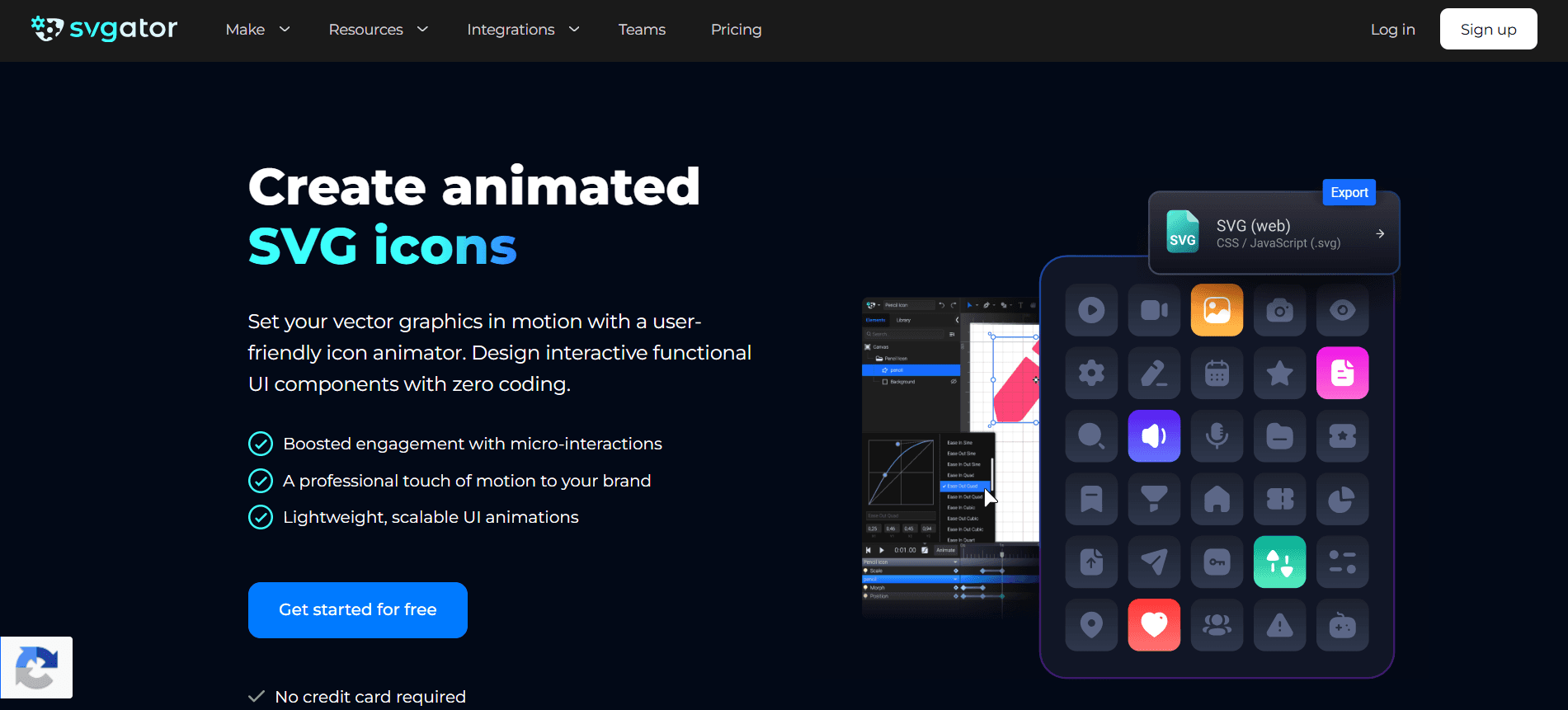
SVGator is the best browser based vector animation tool for building animated SVG assets. It focuses heavily on animated icons, loaders, logos, illustrations, hover states, menu transformations, and other microinteractions that need to be crisp at different sizes.
You can determine how your animation starts by importing an SVG or creating a vector artwork, or animate individual elements on a timeline. However, SVGator comes with the Figma plugin connecting design files with its animation workflow. You can preview the render media in Figma and download SVG, Lottie, Flutter, or React Native output through the plugin. But the animation creation and editing will take place in SVGator.
The keyframe timeline of SVGator controls the movement, scale, rotation, opacity, color, strokes, masks, filters, and other supported vector properties.
Morphing, motion paths, and self-drawing strokes support expressive icon transformations, loaders, logos, diagrams, and interface feedback.
Load, hover, click, scroll, and programmatic triggers allow animations to respond to common website interactions.
The SVGator Player API lets developers play, pause, restart, reverse, seek, and connect animations to external application events.
SVGator is best for individual vector assets and not multi screen interface flows.
The CSS export in SVGator supports fewer advanced animators and interaction triggers than JavaScript export.
Pick SVGator if you need animated icons, logos, loaders, vector illustrations, and responsive web microinteractions needing deployable SVG output.
Select Lottie for lightweight, mostly linear animations such as loaders, icons, and onboarding illustrations. And go for Rive when an animation must switch between states, respond to user input, or use live application data. Rive will provide you deeper runtime logic, but Lottie fits more established asset based web and mobile workflows.
You can import Figma designs in Flow, and Lottielab, but import does not promise you a finished production asset. But remember, that layers, masks, effects, and interaction logic may require cleanup or rebuilding.
No code UI animation tools does not replace developers fully. You don’t need to manual code to generate animation assets, prototypes, interaction logic or etc., but your review code, test performance and provide accessible fallbacks manually.
Which UI animation tool is best for you, it depends on what you need to ship. Before picking, think about your desired output, platform compatibility, developer handoff, performance and other needs. Pick the UI animation tool based on the complexity of your production workflow.
Upgrade to Grabui
Discover unlimited inspiration to help you Design fast. Build faster.


Share On


